Thursday, April 9, 2009

Touch (Vista) by tehk

Found this cool new theme with the New icons "touch icons" from the S60 5th editon devices of Nokia.

It's a really good theme and I really liked it. Thanks to tehk !

Download this theme from here also you can check more of tehk's creations at tehkseven Themes

Wednesday, April 8, 2009

WWIGO + Nokia device = Mobile Webcam

WWIGO is a application as it allows you to use your Mobile camera as a webcam with your bluetooth enabled computer! (laptop). It's true that today most laptops have built-in cams but it still proves to be a really useful application.
WWIGO is free to download and it allows you to choose between the Device's main and secondary camera to use as a webcam. You can quickly connect to any laptop / desktop that is bluetooth-enabled.
screenshots:


Friday, March 20, 2009

Nokia puts an END to MOSH


Nokia internet service MOSH (Mobilize and Share) is soon going to be discontinued. This file (applications/ ringtones etc) sharing site is soon going to be merged into Nokia's Ovi Internet Services. MOSH that started in 2007 has attracted many users who upload and download applications via PC or directly from their Nokia Devices.

It will be soon integrated into Ovi services as Download! and the widgets from WidSets. However No exact date is known as to when the merging is going to take place

Friday, February 20, 2009

Nokia N86 8MP: Video

Here is a Video of the newly revealed Nokia N86 8MP. It's simply marvellous isn't it  ?!!!


Tuesday, February 17, 2009

Nokia unviels 8 MP Nseries!

Nokia has unvieled its 8 MP Nseries Device, The N86, which will be its Flagship Imaging Device.

Yesterday at MWC, the Nokia N86 made its debut! the N86 will have S60 v5 software edition running on it which is NOT touchscreen. 
The N86 basically looks like the N85 BUT has a stand like the Nokia N96. Now thats a Good move by Nokia. The device being a dual slider just like the N95's , N96 and N85 is a Fantastic Mutimedia Device which is loaded with features like an 8 Megapixel Camera armed with a 3rd generation dual LED flash!

However its about 149 gms. in weight which is a little bit too heavy. The device should be available in Q2 of 2009.


  • Some specs are given below: 
  • 1200 maH battery
  • OLED 2.6" display 240x320 resolution
  • 8 MP camera 
  • Scratch Resistant Hard Glass front
  • 3rd generation dual LED flash
  • 8GB internal storage with micro SD slot


Thursday, February 12, 2009

Valentine's Day Themes For Your S60 device

It's just two days left for Valentine's Day and how can there not be Themes for your Nokia Device!

So here we are with two themes which I found today while browsing some of my favorite blogs.

1. Happy Valentines Day theme - by Jimmy
Found this one while browsing pages on everyones favorite blog Symbian-Guru. This is a really nice theme with great colors and its also my current theme on my N95 8GB. 
So head over to Jimmy's Blog to download this Valentine's Day theme for your Nokia Device


2. Valentine 2009 by Pizero
One of my favorite Theme makers Pizero has created a Valentine's Day theme. This one can be downloaded from here.

Tuesday, January 20, 2009

Connect your WLAN enabled Nokia devices to Home internet

Well I know there are many people out there who wanna use Internet on their Nokia Devices for N-Gage gaming, Browsing internet, Synchronising Emails, Listening to Internet radio etc. But then the cost of Data transfers of GPRS is quite high also sometimes the connection does not provide high speed data transfer.
So if you wanted to connect your Nokia device via WLAN to your Internet Connection on your PC or laptop and did'nt know how then you are at the RIGHT place!

Follow the steps given below and then your done!

FOR WINDOWS VISTA:

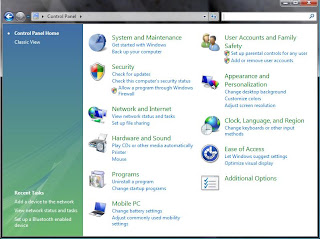
ON windows Vista Goto Control Panel from your Start Menu

Select Network and Internet 


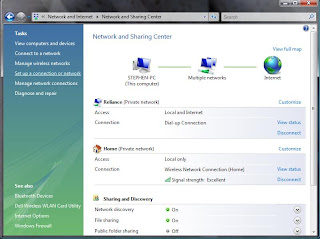
Then On the tasks pane on the left side Select Set up a network or Connection


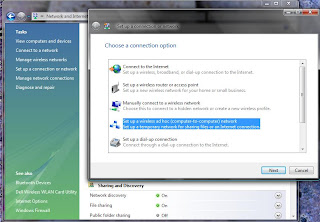
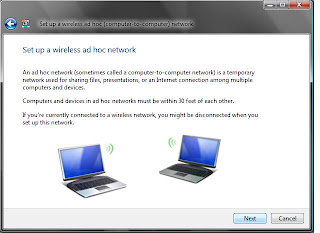
Then select " Set up a wireless ad hoc (computer-to-computer) network "


 When this Box opens up You just have to click Next (shown below) :


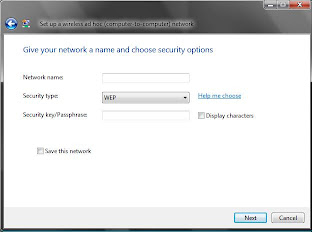
Next you have to give a Name to your Network in "Network Name" give it a name and then
select "Security Type " as WEP (shown below)
Type a Password in " Security Key/ Passphrase" Check the "Save this network" if you wish to save the current network.


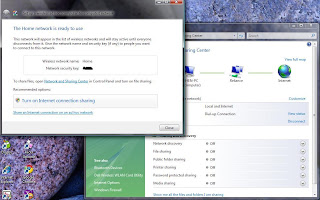
Once the network is ready to use you should get a "Windows Recommendation" stating "Turn ON Internet Connection sharing" (shown below) Select that option and then you are done!


FOR WINDOWS XP:

From Windows Xp Desktop, Click Start, then Select Control Panel, then Select Network and Internet Connections, and "Network Connections"

NOW Right Click on your current Internet Connection (the one you are currently using to connect your computer to the internet) and then Click Properties.

On the "Advanced" tab select the "Allow other network users to connect through this computer's Internet connection

Click OK to save your changes.

Now to create a protected wireless network shared through ICS (Internet Connection Sharing)

From Start Menu goto Control Panel then to "Network and Internet Connections" and select "Network Connections"

Right Click the "Wireless Netowrk connection"(which is disabled) and then click "Properties"

Click the "Wireless Netowrks" tab 

In the "Wireless Netowrk Adapter Properties dialog box" click "Add" under "Preferred Networks"

In the  "Association" tab click type the name of your ad hoc wireless network, in "Network Name (SSID) " (this is the name of the network you want to set up)

Select "This is a computer-to-computer ad hoc network" check box and CLEAR the "The key is provided for me automatically" check box

In "Network Authentiacation" select "Open"and in "Data Encryption" select "WEP"

In "Network Key" type the WEP key (password you are setting)

In "Confirm key" re-type the WEP key

Click OK to save changes to the wireless network and click OK to save changes to the wireless adapter

Thats it !


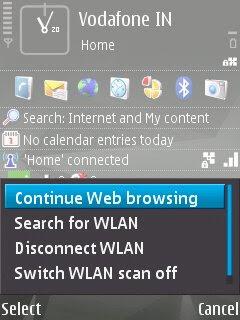
There! your done! now on your Nokia Device turn on "Wlan scanning" and it will find the Network with the name you gave it on your computer. When it requests a password / WEP key enter the password yo added when creating the network on the computer.

I have done this for my Nokia N95 8GB take a look!
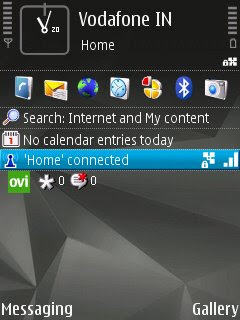
 
    
There you are! all set for high speed internet usage!

Tuesday, January 13, 2009

N78 Review: Micky's Blog


Micky from Micky's Blog, has recieved a Nokia N78 from Nseries WOM World. 

He has put up a brief, but good review about it on "Micky's Blog". Click here to check out the review and comment on it!

Thursday, January 1, 2009

Happy New Year 2009!!

Wishing all the Readers of the Nokia Nseries Blog and Everyone out there a very Very Happy and Prosperous New Year 2009!