Showing posts with label wlan. Show all posts

Monday, June 22, 2009

Review: Audials Mobile – Free Music!

All music lovers out there would really love to download Free Music directly to their S60 Devices so that they can enjoy music wherever they go and get whatever they want on the go!

Yes all this seemed to be impossible but now with Audials Mobile this is possible in the simplest way ever!  Yes ‘Audials Mobile’ is an awesome application that allow you to do just that!

Audials Mobile allows you to download MP3 quality music right to your mobile phone from the Internet via various Social Radio stations without the talks of those RJ’s!!! so its pure music and that to with a good quality straight to your mobile device!

  • Download Audials Mobile app.
    Just go to the Audials Mobile Site from your PC or mobile phone and download it. the link http://audials.com/en/audials_mobile/
    OR just use the ‘Barcode reader’ on your S60 device to get the download link directly to your mobile phone from the Audials Mobile site

Screenshot0078Once you have installed the app and bought the full version from the Audials Mobile site register it to get going and to start enjoying all the features!

  • Search for music:

Screenshot0068You can create a search for your music by searching via artist (Select Search) or via Genre (Select genre)

Screenshot0067I created a search for the aritst “Kanye West” and as you can see the results show up. Select the artist from the list and then you get the list of all the songs of the selected artist:

Screenshot0065To search via Genre select the genre option and you get a big list of all the available options:    

Screenshot0070

then select the sub-genre (if any) I selected Hip-Hop and got this:

Screenshot0071you then get all the artists under the selected genre:

Screenshot0074Screenshot0075the search is real fast and ends up with a number of selections ina few seconds! then select the artist and the song you want to download!

  • Download Music

Once you got the song you want to download simply click options and then select “Record” 

the download starts and you can easily see the downloaded songs in the ‘My Songs’ category. Once the downloads are done you can listen to them and enjoy!

I downloaded three songs before writing this post and the feeling was good! mainly because the search is very fast and powerful, getting results in a few seconds, and the downloads are fast as well! The quality of the sound being awesome!

Screenshot0072  Screenshot0077

I used WLAN to get all this done and of course Audials Mobile !! a Must have application for all you music lovers out there!!


Wednesday, June 17, 2009

Nokia Internet Radio Update

The Nokia Internet Radio application has an update. For those who don't know what this application is about here is a post that will tell you about the earlier version : Click HERE
I was listening to a Hindi music station while writing this post on this application via WLAN and believe me it was really good!
DOWNLOAD this application from here, the .rar file contains both fp1 version and fp2 version

Tuesday, January 20, 2009

Connect your WLAN enabled Nokia devices to Home internet

Well I know there are many people out there who wanna use Internet on their Nokia Devices for N-Gage gaming, Browsing internet, Synchronising Emails, Listening to Internet radio etc. But then the cost of Data transfers of GPRS is quite high also sometimes the connection does not provide high speed data transfer.
So if you wanted to connect your Nokia device via WLAN to your Internet Connection on your PC or laptop and did'nt know how then you are at the RIGHT place!

Follow the steps given below and then your done!

FOR WINDOWS VISTA:

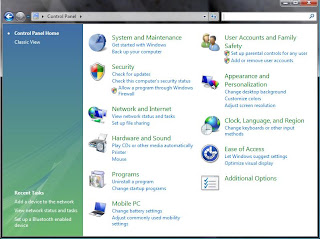
ON windows Vista Goto Control Panel from your Start Menu

Select Network and Internet 


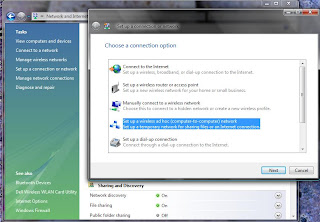
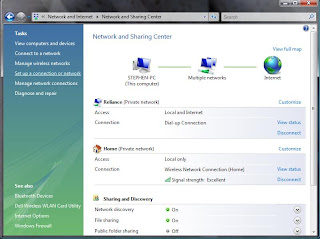
Then On the tasks pane on the left side Select Set up a network or Connection


Then select " Set up a wireless ad hoc (computer-to-computer) network "


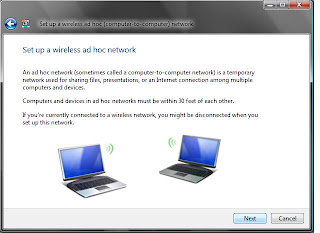
 When this Box opens up You just have to click Next (shown below) :


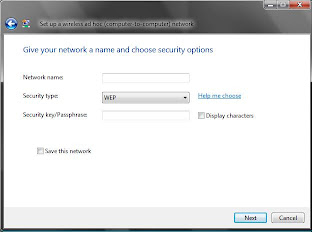
Next you have to give a Name to your Network in "Network Name" give it a name and then
select "Security Type " as WEP (shown below)
Type a Password in " Security Key/ Passphrase" Check the "Save this network" if you wish to save the current network.


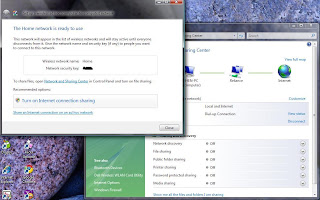
Once the network is ready to use you should get a "Windows Recommendation" stating "Turn ON Internet Connection sharing" (shown below) Select that option and then you are done!


FOR WINDOWS XP:

From Windows Xp Desktop, Click Start, then Select Control Panel, then Select Network and Internet Connections, and "Network Connections"

NOW Right Click on your current Internet Connection (the one you are currently using to connect your computer to the internet) and then Click Properties.

On the "Advanced" tab select the "Allow other network users to connect through this computer's Internet connection

Click OK to save your changes.

Now to create a protected wireless network shared through ICS (Internet Connection Sharing)

From Start Menu goto Control Panel then to "Network and Internet Connections" and select "Network Connections"

Right Click the "Wireless Netowrk connection"(which is disabled) and then click "Properties"

Click the "Wireless Netowrks" tab 

In the "Wireless Netowrk Adapter Properties dialog box" click "Add" under "Preferred Networks"

In the  "Association" tab click type the name of your ad hoc wireless network, in "Network Name (SSID) " (this is the name of the network you want to set up)

Select "This is a computer-to-computer ad hoc network" check box and CLEAR the "The key is provided for me automatically" check box

In "Network Authentiacation" select "Open"and in "Data Encryption" select "WEP"

In "Network Key" type the WEP key (password you are setting)

In "Confirm key" re-type the WEP key

Click OK to save changes to the wireless network and click OK to save changes to the wireless adapter

Thats it !


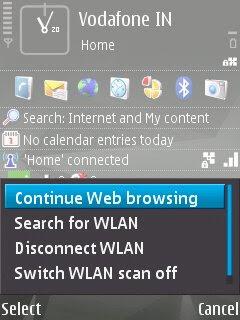
There! your done! now on your Nokia Device turn on "Wlan scanning" and it will find the Network with the name you gave it on your computer. When it requests a password / WEP key enter the password yo added when creating the network on the computer.

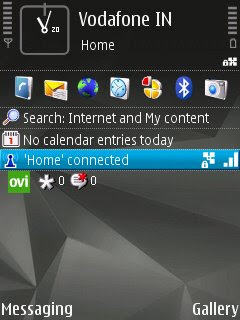
I have done this for my Nokia N95 8GB take a look!
 
    
There you are! all set for high speed internet usage!